You may notice oddities in File Explorer where SharePoint files aren't showing, or the sync icons next to files are missing. It's likely that SharePoint has disconnected from OneDrive and stopped syncing.
To check what's currently syncing:
1. Select the OneDrive icon from the taskbar
2. Click the cog and select Settings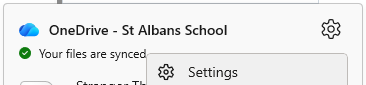
3. Under the Account tab, you should see OneDrive and Staff Resources both syncing. If you only see OneDrive, SharePoint has disconnected and will need to reconnect. 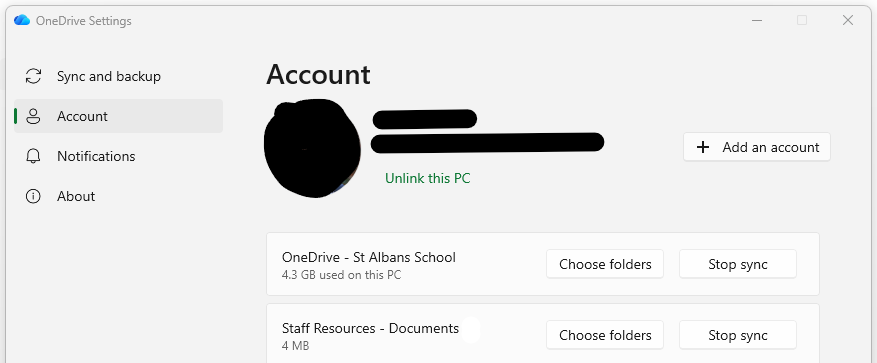
To resync SharePoint to your PC:
1. Open https://stalbansschool.sharepoint.com/sites/StaffResources/Shared%20Documents/Forms/AllItems.aspx
2. Select Sync from the menu bar. It may be hiding in the ellipses 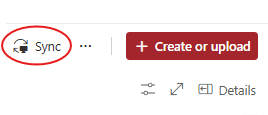
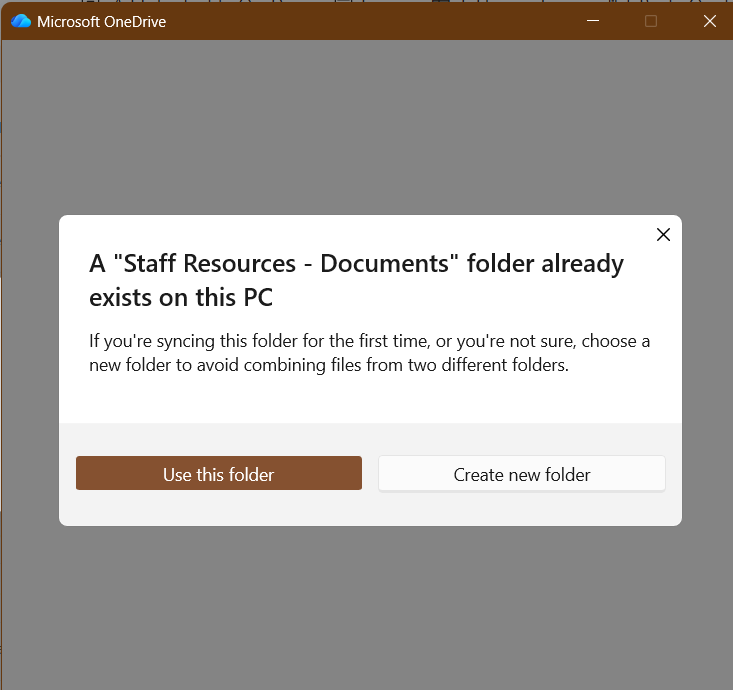
3. When the window below shows, choose Use this folder
4. You should now begin to see files syncing again in your OneDrive client. Do not alter or change any files until the sync has completed.
Was this article helpful?
That’s Great!
Thank you for your feedback
Sorry! We couldn't be helpful
Thank you for your feedback
Feedback sent
We appreciate your effort and will try to fix the article