Background
Sharing a file or folder stored in your OneDrive or Sharepoint Staff Resources (formerly K drive) is a quick and secure way to send files to colleagues and pupils. You can share these by using the following method.
Important: Please note that some areas of Sharepoint have their own specific permissions in place. If you want to collaborate with a colleague or pupil, please also consider where you are placing a folder/ file -
- Creating sharing links for pupils to areas within Staff Resources is likely to be ineffective as pupils are specifically prohibited from accessing this area
- Sharing links to areas within departmental folders is likewise likely to be problematic due to how Sharepoint permissions have been setup at the School
Step 1
Log into Office online (https://stalbansschool-my.sharepoint.com/my) and locate the file/folder.
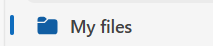
- If the file is in your OneDrive, click the MyFiles in the left hand app menu
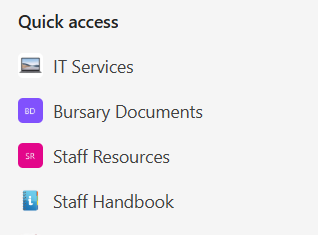
- If the file is in Sharepoint, select the relevant area from Quick Access
Step 2
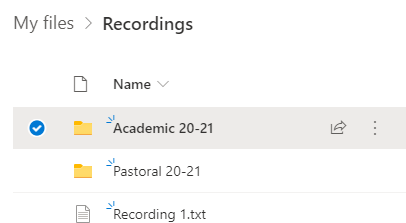
Once you have located the file/folder, select the file/folder by clicking the radio button that appears to the left of the file/folder name when you move your mouse over it.
Step 3
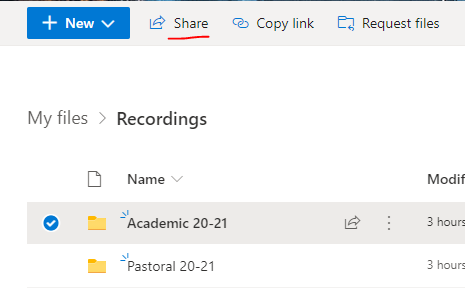
Now click the Share button at the top of the page.
Step 4
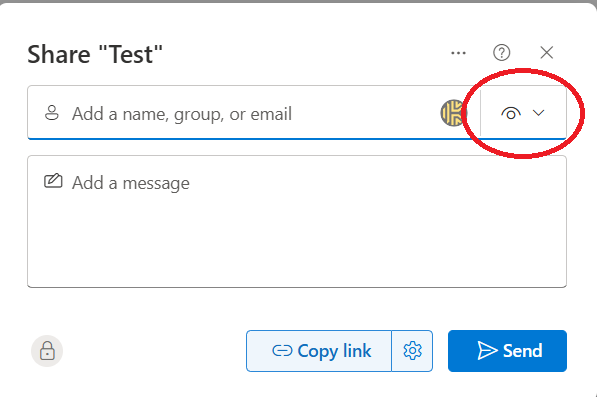
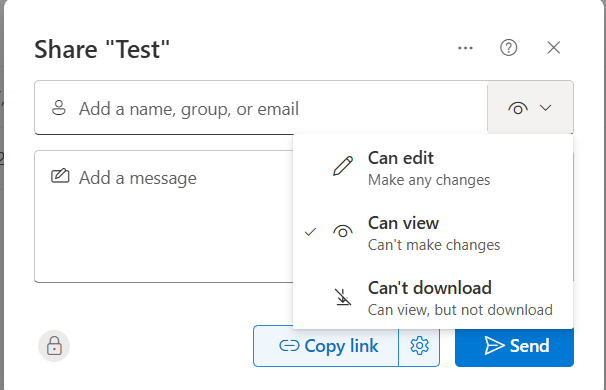
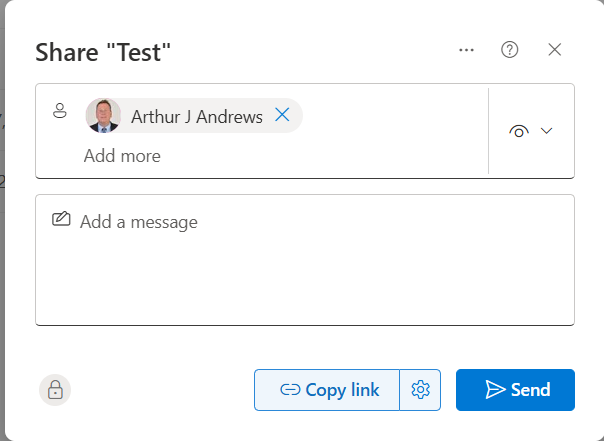
Enter the name of any people you would like to share the folder or document with in the 'Add a name, group or email' box. By default, the sharing link is set to 'view only'. If you would like people to edit it, select the eyelid icon (highlighted below) and amend the sharing permission level.
Step 5
Once you're happy with the settings, you can either select 'Copy Link' to copy a link to the resource to include in an email or Teams message, or select 'Send' to automatically send an email to the recipients with a link.
Was this article helpful?
That’s Great!
Thank you for your feedback
Sorry! We couldn't be helpful
Thank you for your feedback
Feedback sent
We appreciate your effort and will try to fix the article